
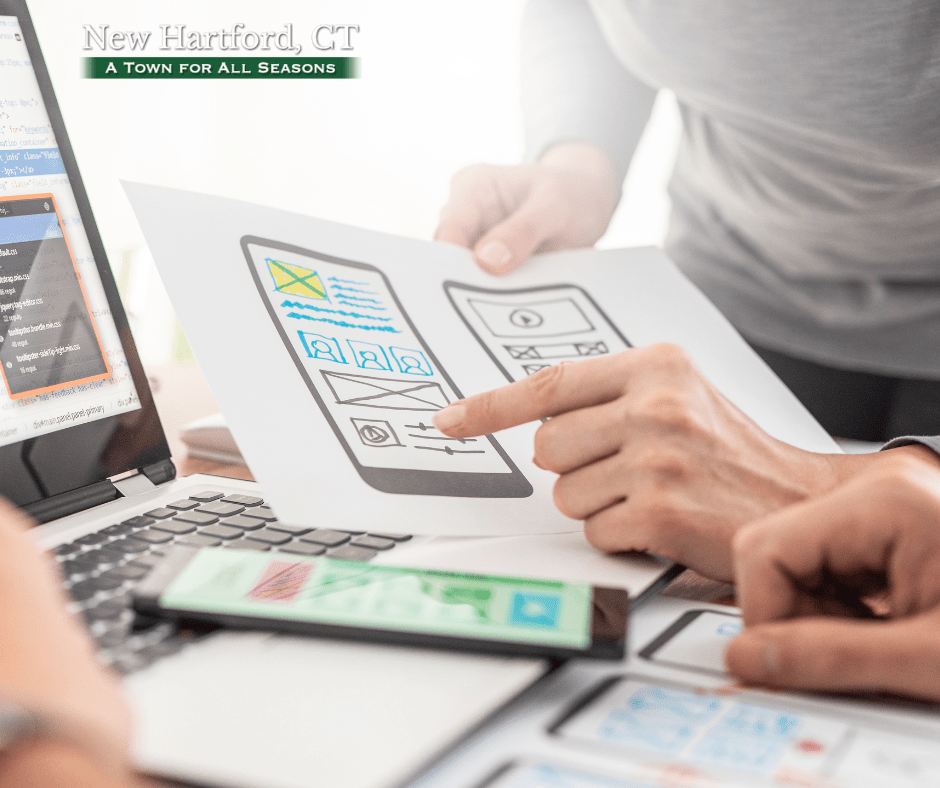
Paper Prototyping – What is it?
As I continue to navigate the exciting world of app development, this week’s adventure takes me on a distinctly unfamiliar journey with two important tools: pen and paper. As shocking as it may sound, it’s certainly been a while since I’ve had to create something with physical tools. Almost everything these days can be turned digital, however, when thinking about developing the first designs for an app, pen and paper may be one of the best methods to further developing ideas and designing user flows. After developing an app’s information architecture and visualizing user flows + generating user stories, prototyping a first draft is the common next step to ensuring that a product has been tested and proved for viability.
Why Prototype with Paper?
Prototyping is the fourth stage of the UX Design Process. During this phase, UX Designers are able to implement the ideas that they have generated into a physical or digital canvas. Prototypes serve as proof of an idea or concept and give the ability to designers to show their ideas in a more presentable way to a general audience.
Beginning with Paper Prototyping before starting anything on digital comes with its own set of advantages and disadvantages.
Advantages:
- Low cost – Beginning to Paper Prototype is simple, quick, and easy! Although there are many tools that might help users visualize your product more. Pen and Paper are the base.
- Rapid iteration – Sketches are easy to reiterate and revise!
- Documentation –
Disadvantages:
- No User Reactions
- Inaccurate feedback: people may be confused with a sketch
To start a paper prototype of your own, here are a list of materials that might be helpful to you:
- Pen/Pencils
- Paper
- Eraser
- Post-it Notes
- Scissors
- Glue
- Index Cards
- Highlighters
According to Ben Coleman in his article “How to make Paper Prototypes“, he specifies that the approach to making paper prototypes involves a four-step process. These four categories are listed below:
Devices
When designing an application, we must envision what device the user is most likely going to use it on. Will it be a tablet, desktop, phone, or even all three? A designer can even specify the device even further by designing for a particular device such as an iPhone. After a few minutes of contemplating, I eventually landed on designing for a mobile device as it seemed the most efficient platform to draw on based on the features I wanted to implement.
Screens
After deciding what screen size to draw upon, we now must take into account the various screens needed for a specific task. For example, putting all of the tasks onto one screen may make it confusing for users on where to go to complete a task. So, deciding ahead of time of the number of screens needed to accomplish the goal is vital. In many of my cases, I wanted to limit the number of information displayed at a time to not overwhelm the user but also avoid sending them down a rabbit hole while navigating. I personally believe there is a good balance needed.
Elements
When paper prototyping, there are several elements to choose from and to decide to implement.
Here is a link to another blog article that has many examples!
It’s important to have a consistent layout when sketching as to avoid confusion. Many of the elements sketched out will look similar to the real thing or at least a rougher version. For example, I use the rectangle with an x crossed out in the middle to show that I plan to add an image in a higher fidelity prototype in the future.
Interactivity
To make a sketch functional, there should be a limited amount of instructions and text. As we progress into user testing, our user should not be handheld to the point where they will know exactly where to go and what to do. There are several ways to display interactivity in a low-fidelity prototype. Some examples are: Tabs, Accordians, Messages + Popup Boxes, and Scrolling!
Paper Prototyping New Hartford Connect
Based on the feedback I received last week about my IA and User flows, I readjusted my sitemap and expanded on the features more. I personally felt that the town of New Hartford’s information could be displayed in a better way that would be less confusing to users. By renaming some of the categories and adding new ones, I was able to readjust my sitemap and build a low-fidelity paper prototype. Also, after browsing some other apps already available, it served as a strong source of inspiration for my own project.
For this project, I decided to print out and sketch out my designs on an iPhone template. These templates are an excellent way to visualize what a user is going to see when they open the app. When sketching out the screens, I turned to the three user scenarios I created last week in order to help develop the display of information that would be most important to showcase during the design process. After developing around 20 screens or so, I felt inspired to develop more screens for various other tasks that I envisioned the app could execute. Some examples of user tasks are: Finding a local trail in New Hartford, reporting an incident, and subscribing to the town’s eNewsletter. Although creating 20+ screens sounds extensive, it was actually quite easier than expected to reach that number. The real issue was limiting the amount to 30 screens and under due to the amount of additional thoughts and questions that occurred when drafting these sketches. Each and every prototype resulted in another question/thought that had to be addressed.
Conclusion
Taking time to physically sketch out a prototype of New Hartford Connect has been a rewarding experience. Rarely these days, do I feel that I have time to really sit down and sketch what my mind is thinking about. However, when building a good product, things ultimately take time to adjust, revise, and improve bit by bit. I’m excited to show these paper prototypes to real users to see how they will react and adjust pages based on their feedback!
It’s exciting to see the potential of what New Hartford Connect could do as a tool to serve the community, keep townsfolk informed as well as make it easier to connect with each other as well.
 Grow with Gao
Leave a comment